
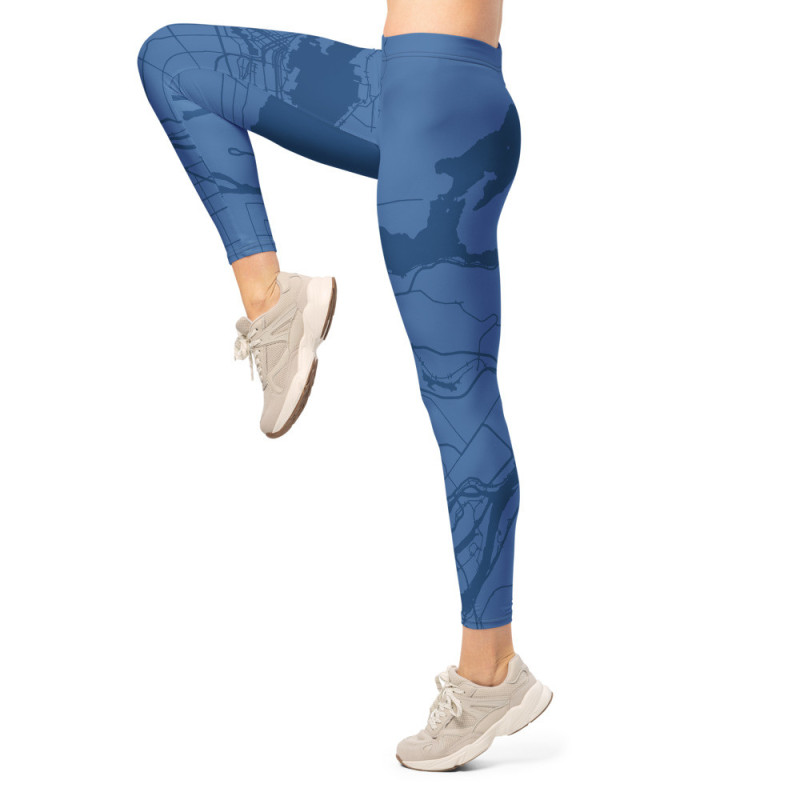


Chart your style with Custom Map Leggings printed with your own design. Pick any location and we’ll wrap it in a crisp, all-over map that moves with you. They are soft and stretchy, and uniquely yours—made for workouts, weekends, and everywhere in between. Choose your location, colors, labels, and details to create wearable art based on a favorite city, trail area, campus, coastline, or meaningful place.
Product customization
Don't forget to save your customization to be able to add to cartMove the slider to rotate the map.
Preview guide: The map within the unshaded areas will be the most visible on your finished leggings and will show on the outward facing side of each leg, wrapping around to the front and back sides. Some of the lightly shaded area may also appear, especially on larger sizes. The dark shaded areas will not be visible. For best results, place your most important map details in the unshaded area. Use the slider below the map to adjust the overlay opacity.
The blue dotted line approximates the outside of each leg. The red dotted line denotes the approximate crotch point. The green dotted lines represent the top of the waistband. Anything above the green will be folded over to the inside of waistband.
Finished product note: Each pair of leggings is made to order, so slight variations in color, placement, and fit are normal. The pattern overlay is for preview purposes only and will not appear on the final product. Note that rough surfaces like concrete or brick may snag the fabric, so be somewhat careful.
Click the color squares to choose your own colors, or click Generate Palette.
Select a color for the stitching.
Display a pointer on the map. Click and drag the pointer to any location.
Make the left leg a mirror image of the right leg.
Show street and place names.
Keep place labels upright.
Select a size. Size Guide
Chart your style with Custom Map Leggings printed with your own design. Pick any location and we’ll wrap it in a crisp, all-over map that moves with you. They are soft and stretchy, and uniquely yours—made for workouts, weekends, and everywhere in between. Choose your location, colors, labels, and details to create wearable art based on a favorite city, trail area, campus, coastline, or meaningful place.